A little space.
For what matters.
Posato blocks the websites and apps you choose for a timed pause on your Mac, iPhone, Windows or Linux computer, or Android phone, now or on a schedule, within the limits below.
No Posato account, no analytics, and no Posato-operated server.
If Posato helps you, star it on GitHub so others can find it.





On an Android phone without Google Play, install the signed APK from GitHub Releases.
macOS 13 or later on Apple silicon or Intel, iOS 18 or later, Ubuntu 24.04 or later, Android 13 or later, and Windows 11. How to install
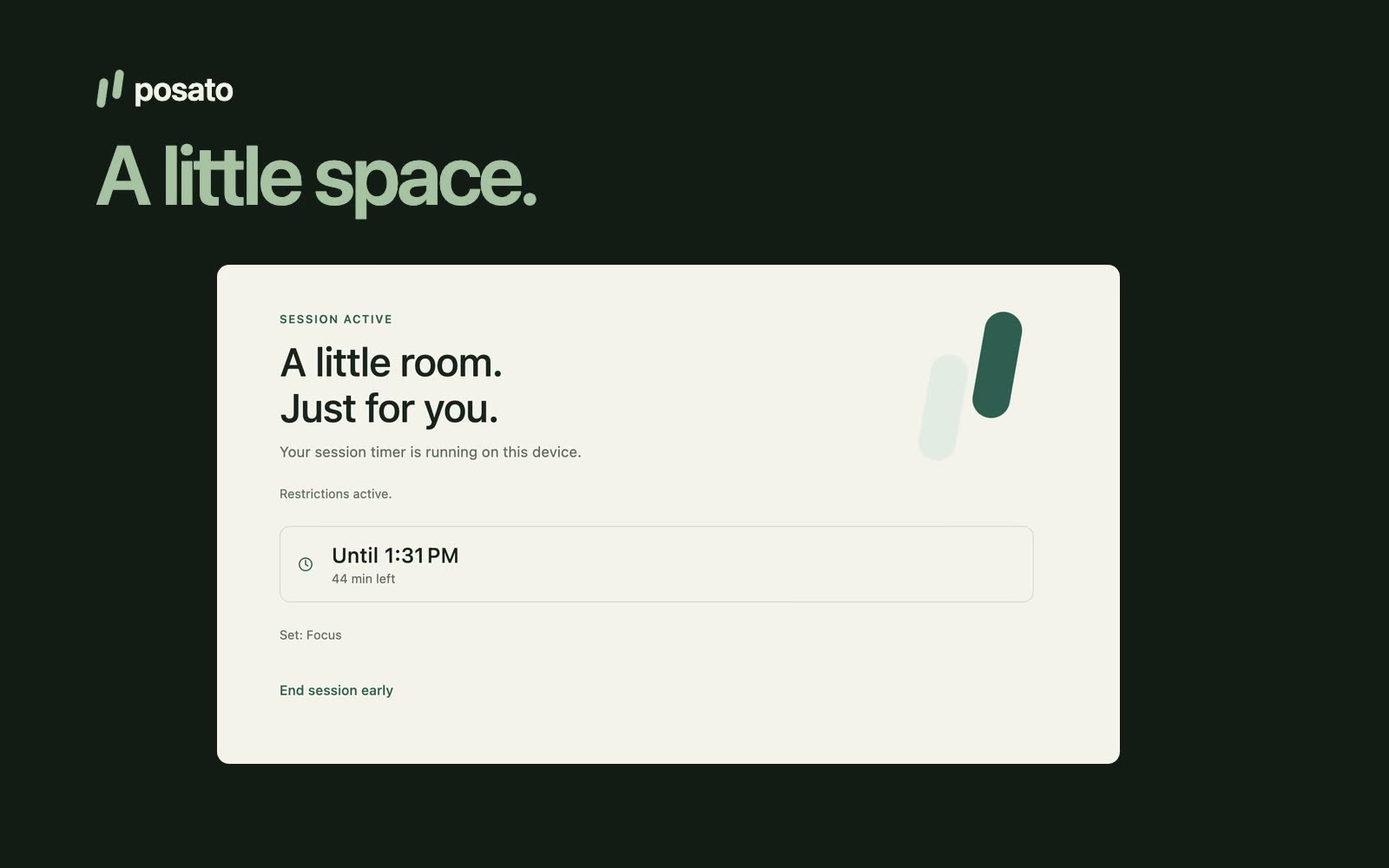
Choose what to pause
Group what you want to pause into pause sets, such as one for work and one for evenings. A set holds exact website domains and, on each device, the apps you choose there. One set is the default; pick another when you start a pause or plan a schedule. App choices stay on the device where you made them.
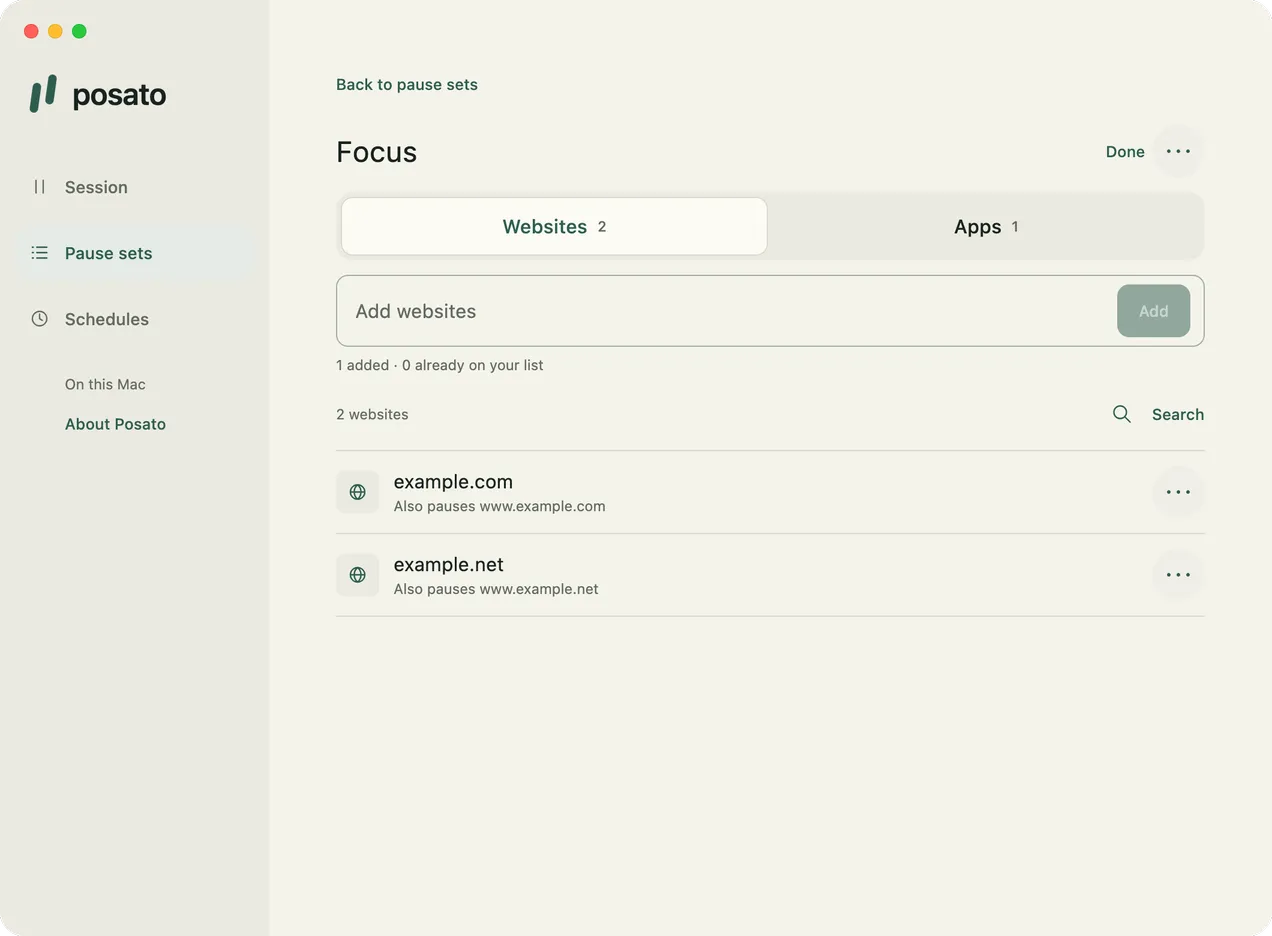
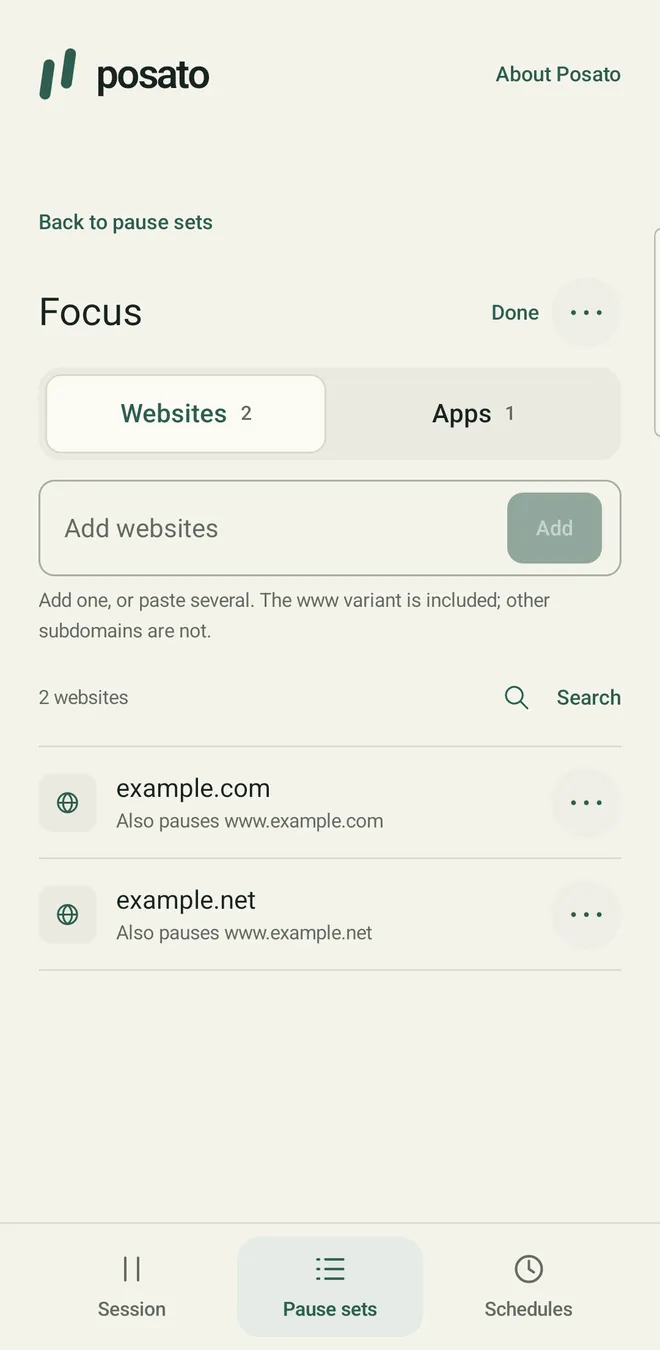
Start a timed pause
Choose a pause set and a duration: a quick choice from 25 minutes to 8 hours, Until end of day, or any length from 5 minutes to 24 hours (up to 23 hours 59 minutes on iPhone). Review your choices and start the session. Posato blocks your chosen websites and apps on that device, within the limits below. The session ends at the selected time or when you deliberately end it early. On iPhone, restrictions can linger after the session ends. On a Mac, a one-time setup lets pauses and schedules start without asking for your password each time.
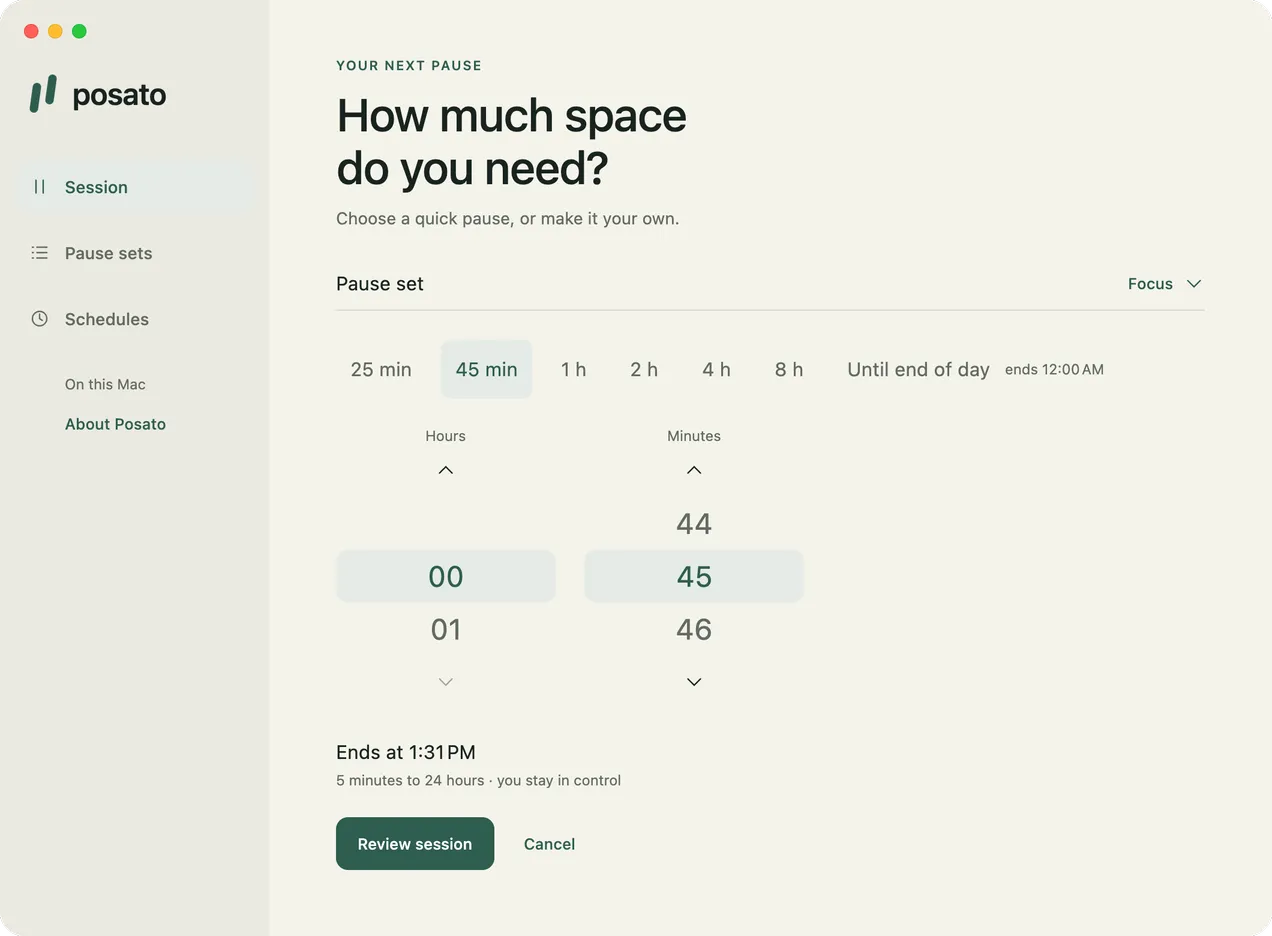
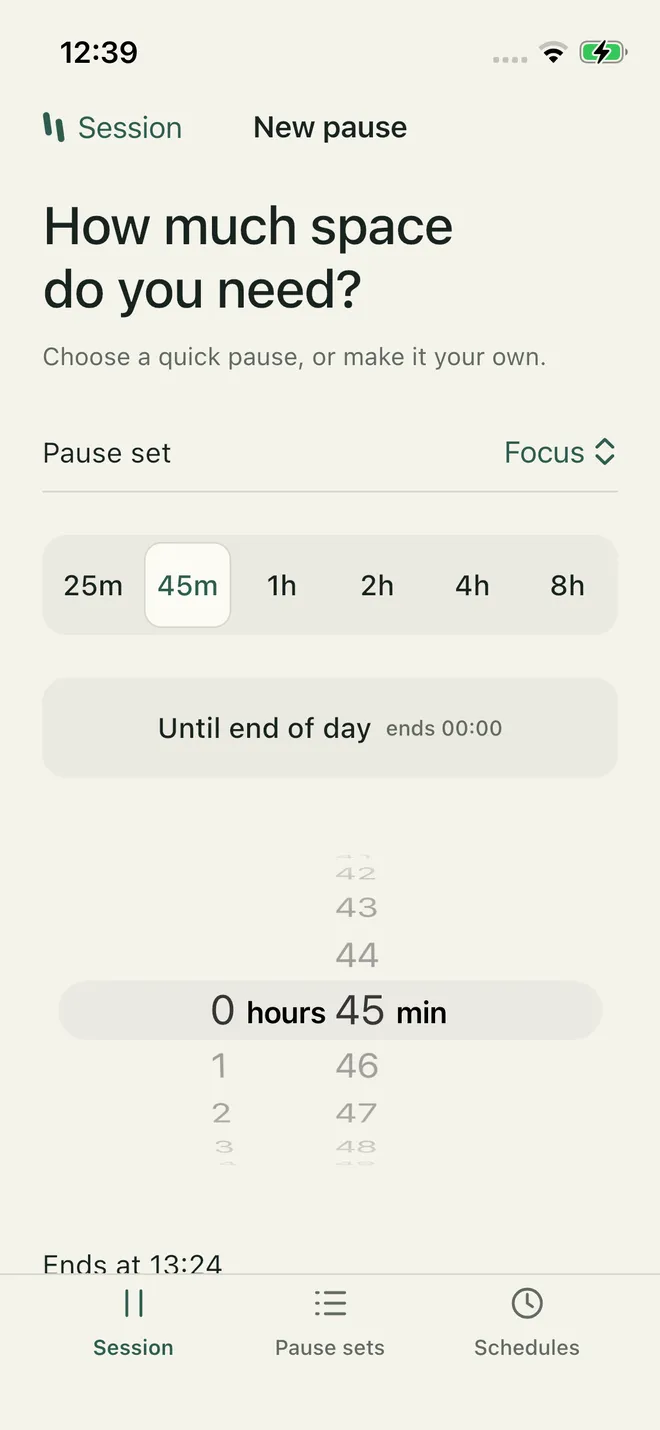
Plan pauses ahead
Add a schedule with a name, a pause set, weekdays, and hours, such as weekday mornings from 9 to 11. It starts and ends on its own on each device you set up, even with Posato's window closed on a computer or the app closed on a phone. Skip the next one or end one early when plans change. When pauses overlap, Posato pauses everything in their sets, within each device's limits, and each item stays paused until the last pause that includes it ends. On Mac and iPhone, Posato can tell you when a pause ends or when one starts on another device.
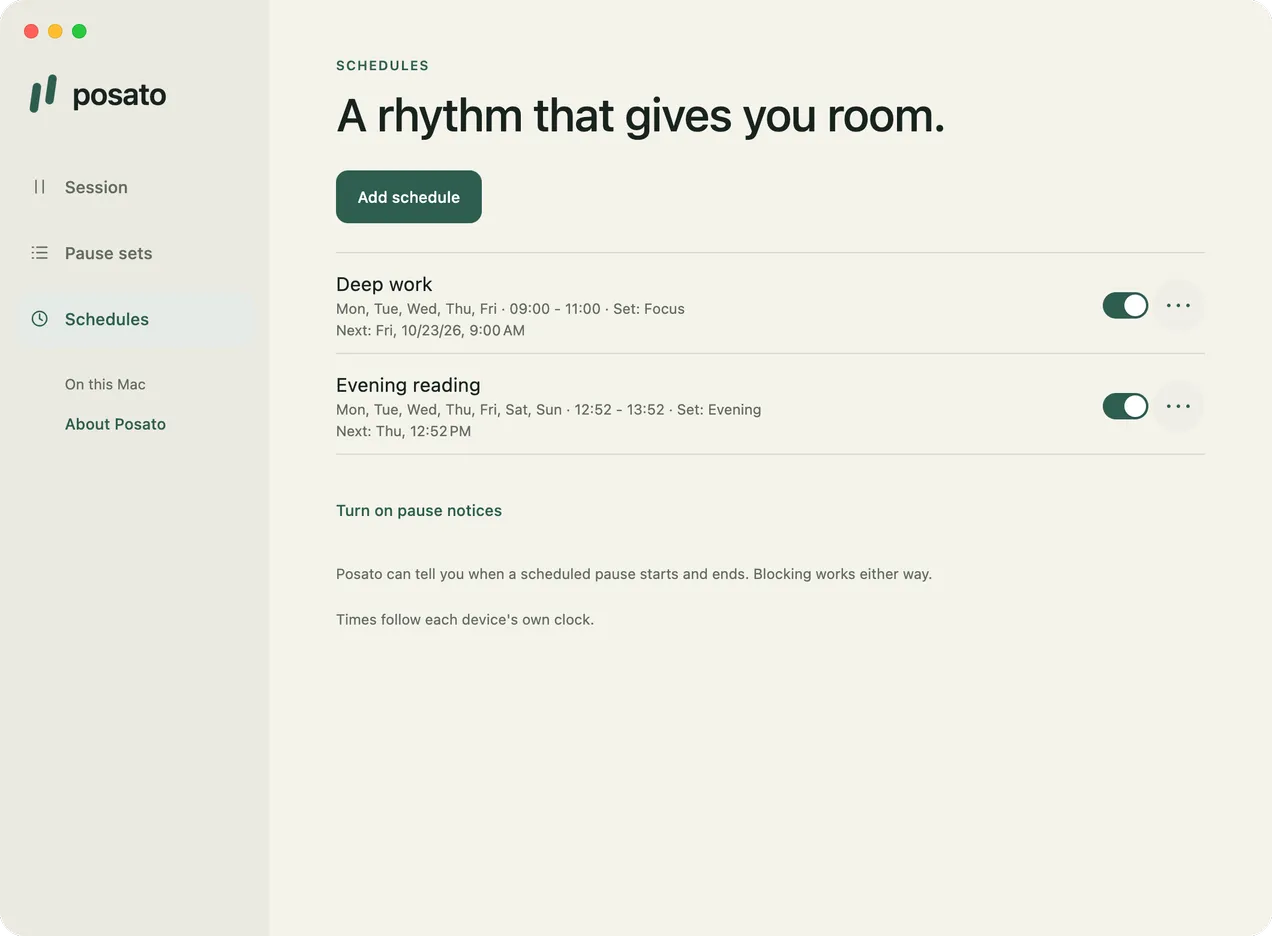
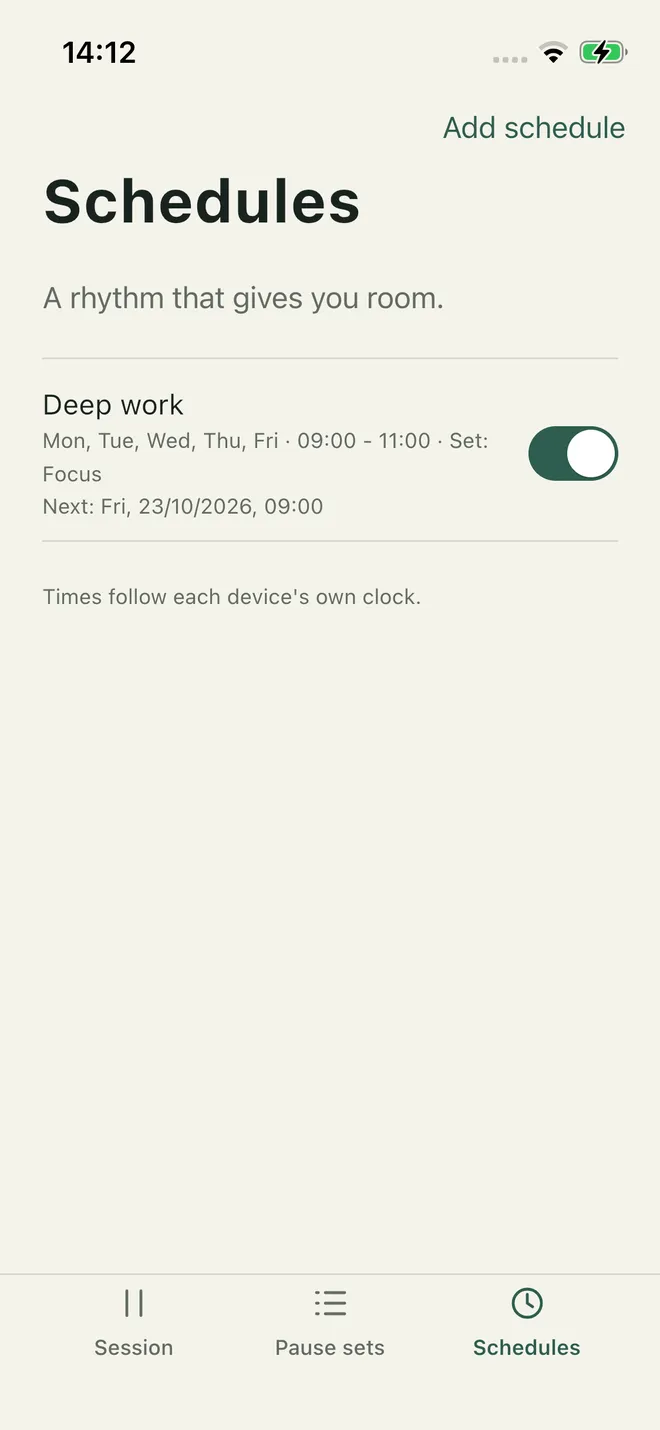
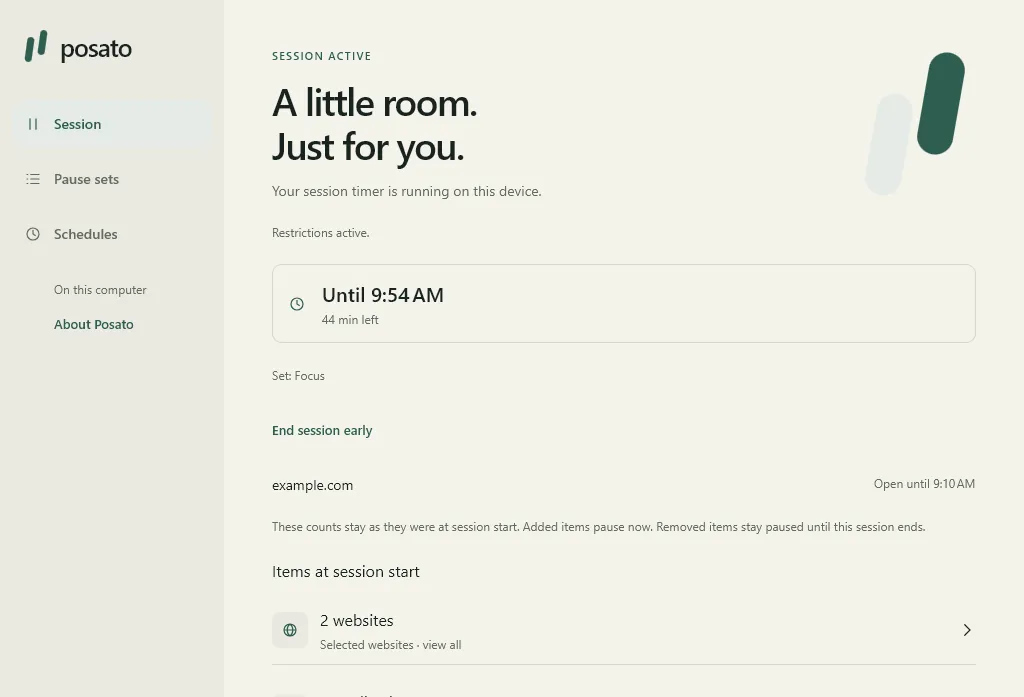
Screenshots are from the real apps and show sample choices.
Take a break, or let a website in briefly
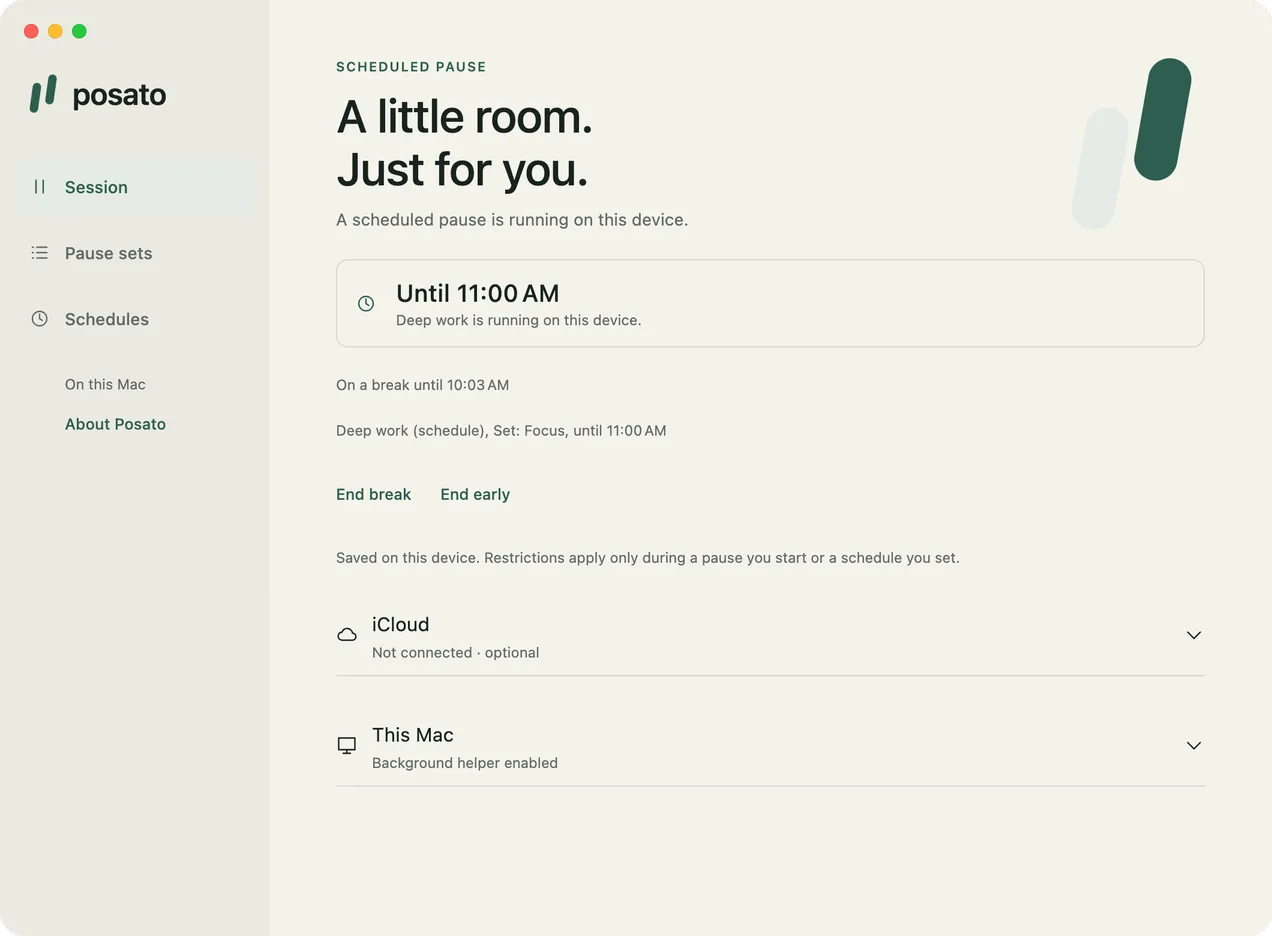
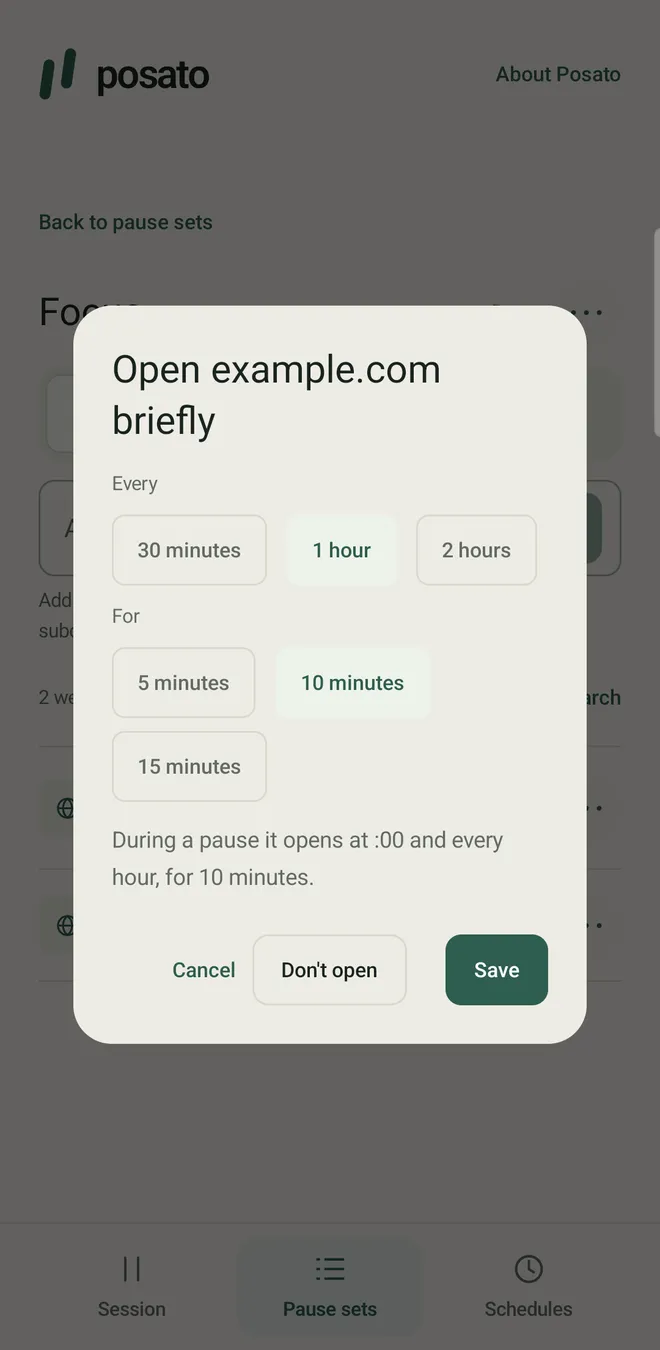
During a scheduled pause, choose Take a break for 5, 10, or 15 minutes: restrictions pause on that device and, once they sync, on your others, and return on their own. Each scheduled pause allows one break, and End break brings restrictions back at once. For a website you want to check now and then, such as the news, choose Open briefly… in its menu in the pause set: during a pause it opens every 30 minutes, hour, or 2 hours, for 5, 10, or 15 minutes, on each device's own clock. Session shows when it opens next. Once you take a break or set such a rule, a device on an earlier version stops syncing until it updates.
Share the session with iCloud
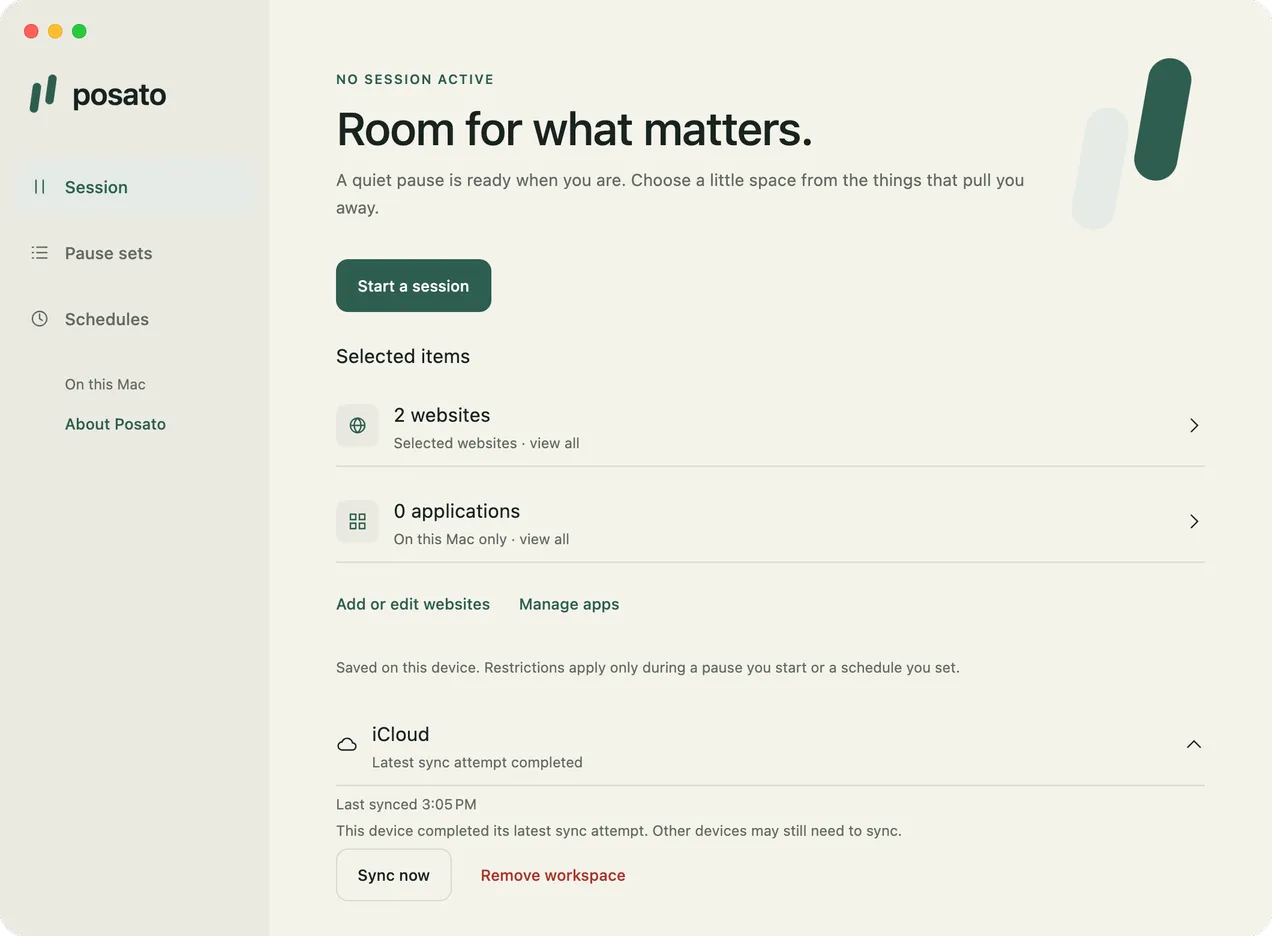
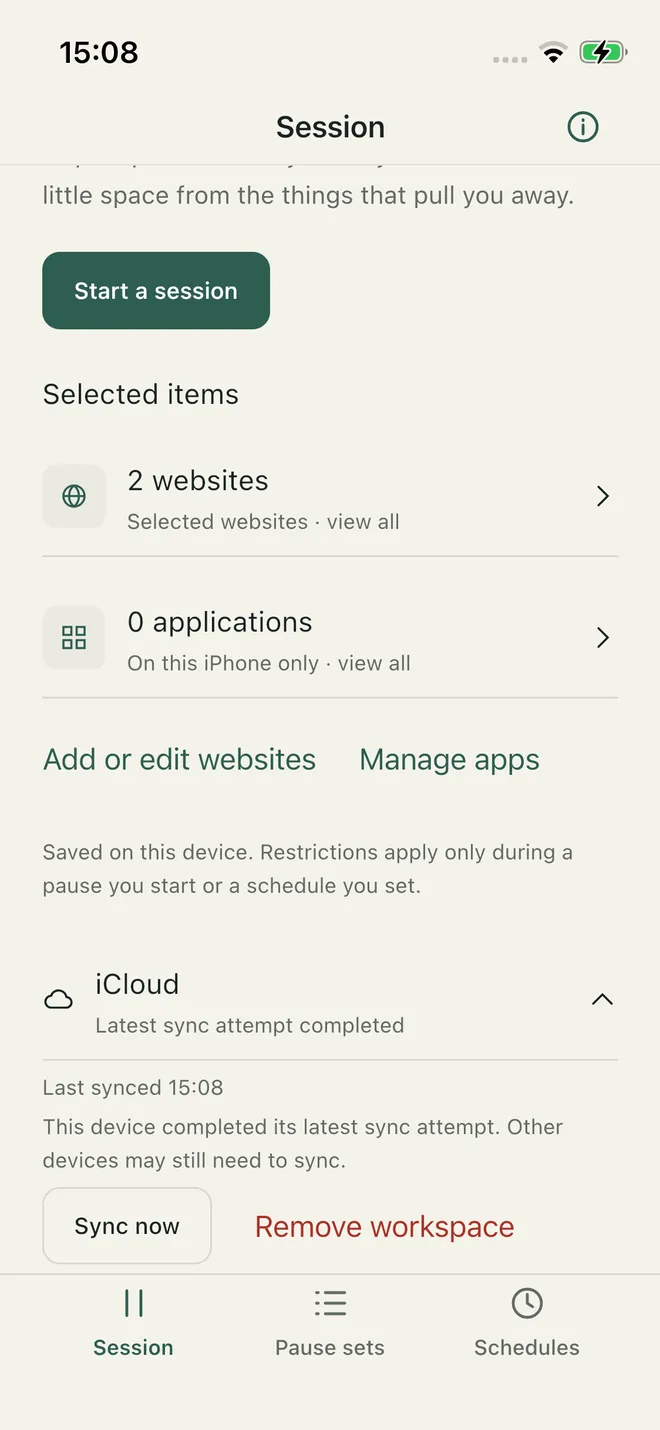
Choose Sync with iCloud on one Mac and one iPhone signed in to the same Apple Account to share your pause sets with their websites, sessions, and schedules. No QR code or invitation is needed. Sync is best effort, so a change may arrive late or not at all. A session started on your iPhone blocks on the Mac only after you resume it there. Update Posato on every device: once one device runs Posato 1.3, devices on an earlier version stop syncing until they update.
Sync through a folder
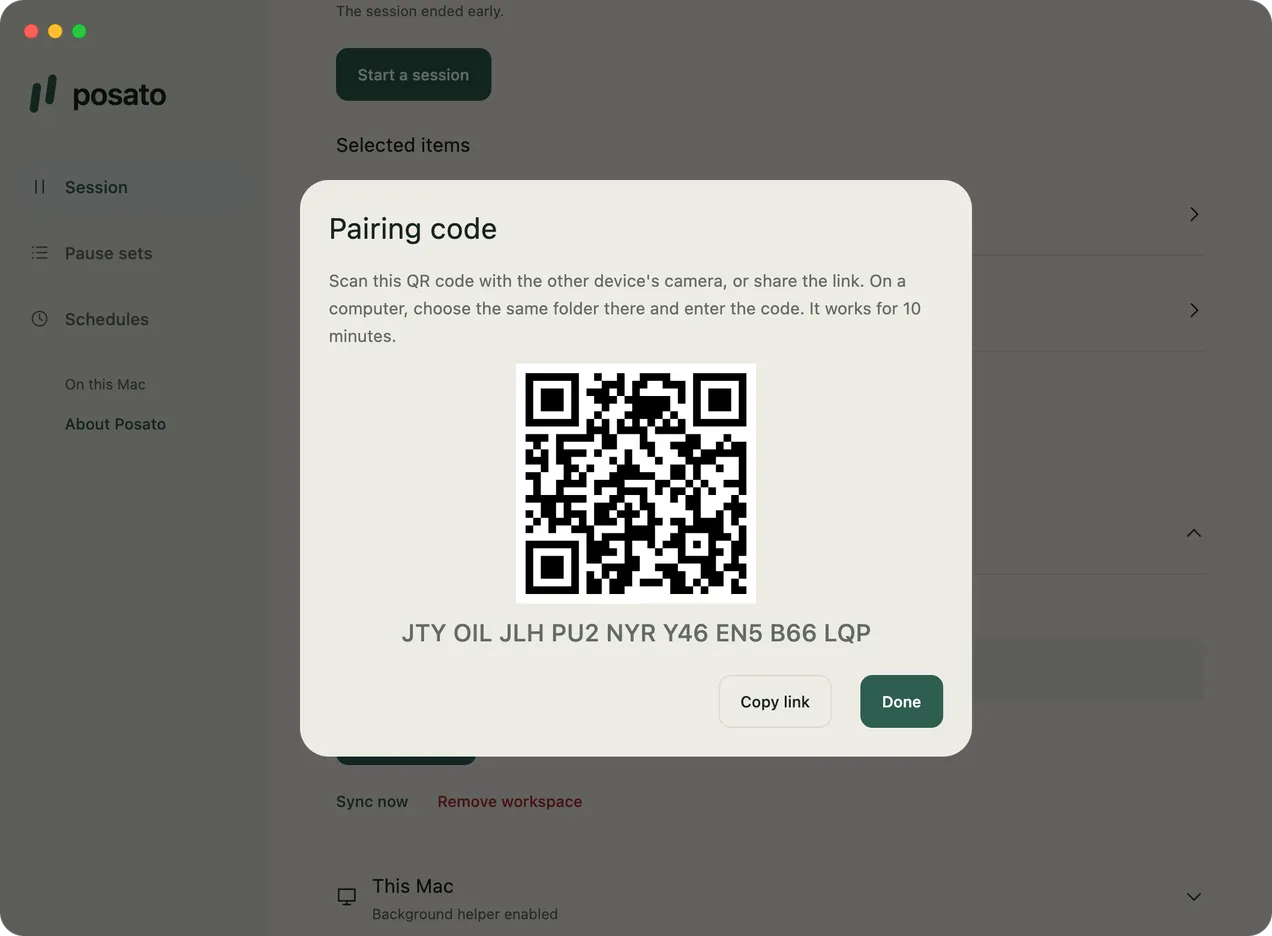
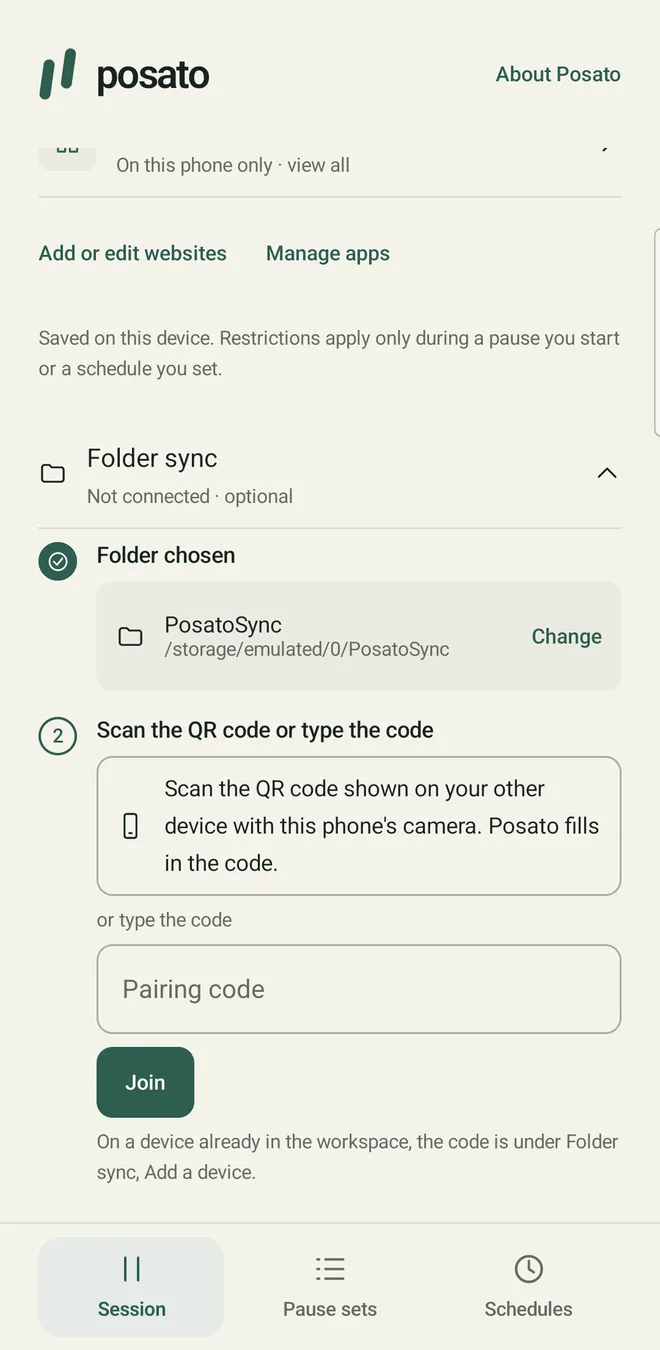
To link any mix of Mac, iPhone, Windows, Linux, and Android, keep the workspace in a folder that Dropbox, OneDrive, Syncthing, iCloud Drive, or another service keeps in sync. Posato writes only encrypted files there. A workspace uses iCloud or one folder, never both. Create the workspace on one device, then choose Add a device there. On the other device, take two steps in either order: choose its copy of the same folder, and scan the QR code with the phone's camera, open the shared link, or type the pairing code. It joins as soon as it has both. The code works for 10 minutes. A device that joins during a pause starts pausing right away. You cannot remove a single device; to stop sharing with one, remove the workspace and create a new one in another folder.
Copy pause sets with a file
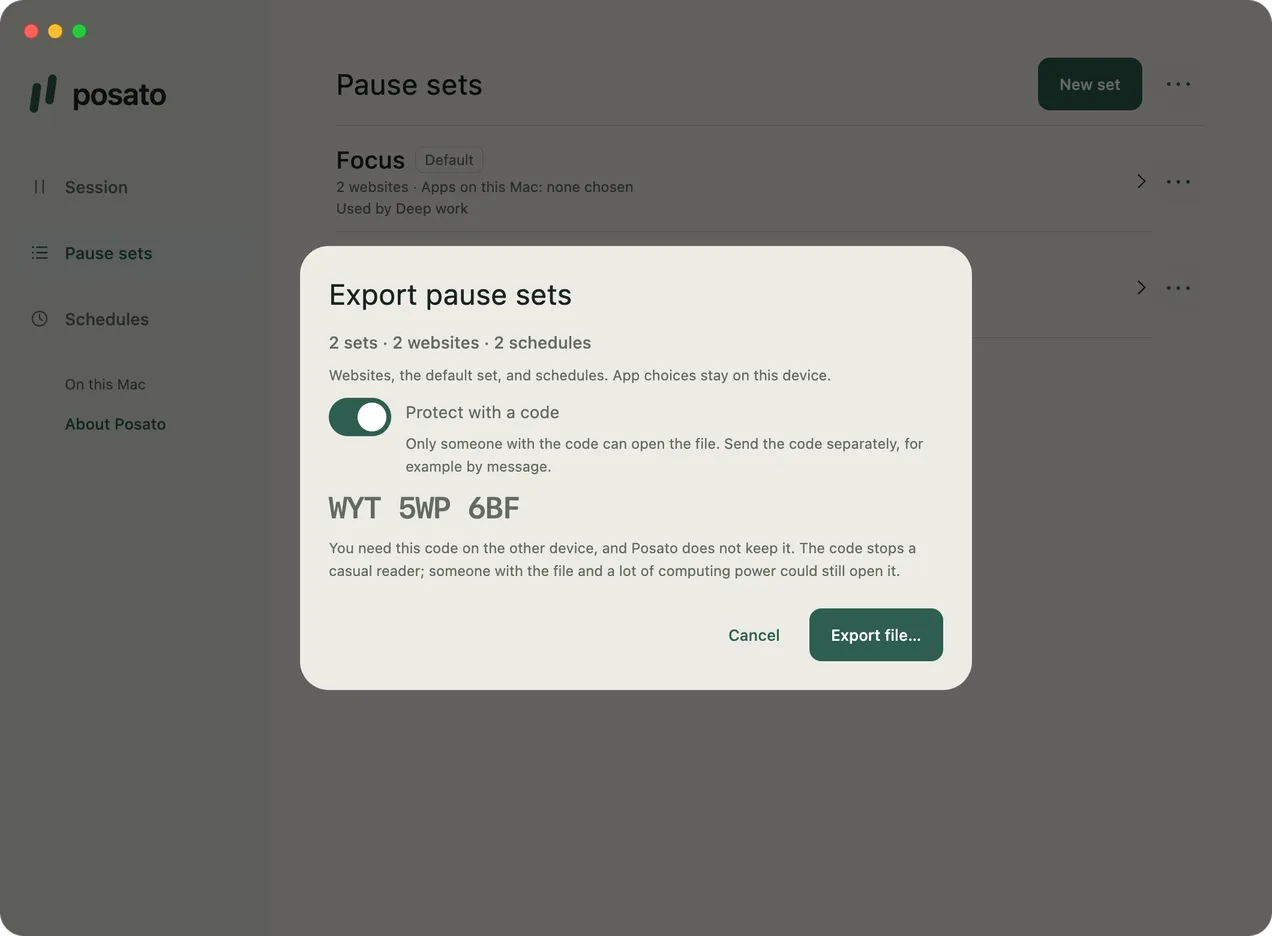
To set up a device outside your workspace, such as a Mac on another Apple Account, choose
Export pause sets… from the … menu in Pause sets.
The .posato file holds your pause sets with their websites, the default set, and your
schedules, never app choices. Protect with a code encrypts it with a
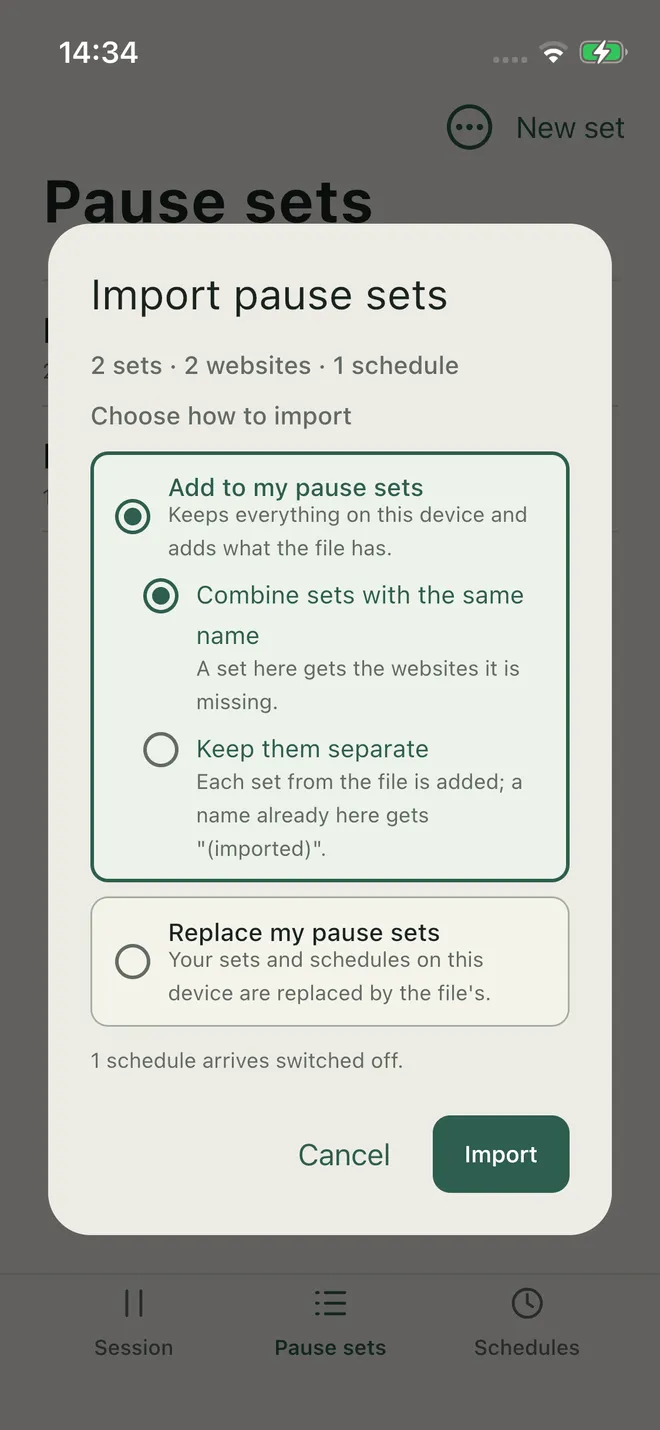
nine-character code that Posato shows once. On the other device, choose Import…
to add the sets to yours or replace them; imported schedules arrive switched off. It is a one-time
copy, not sync.
Limits
Posato adds deliberate friction; it is not a lock you cannot open.
- Mac: blocking works while Posato runs, including in the menu bar with its window closed. Quitting Posato stops it and new scheduled starts. Blocking needs administrator approval; after the one-time setup, starts no longer ask for it. Paused apps are quit, so save your work before a session starts. Website blocking covers Safari and Google Chrome Stable while they use the system proxy settings.
- iPhone: Restrictions can linger after a session ends. For sessions under 15 minutes, they clear only when Posato is open at the end or the next time you open it.
- Linux: websites are blocked by name through
/etc/hosts, with no pause page; a browser with its own DNS over HTTPS bypasses it. Paused apps are ended, so save your work before a session starts. A system service, installed once with your password, ends the pause on time even when Posato is closed. Closing the window keeps Posato running with an icon in the status area. On a desktop whose status area does not show app icons, such as GNOME without the AppIndicator extension, there is no icon, and Posato stays in the background only while a pause runs or a schedule is on. Quitting Posato stops new scheduled starts. - Android: websites are blocked by name through a local VPN, with no pause page; another VPN cannot run during a pause, and strict Private DNS or a browser with its own DNS over HTTPS bypasses it. A paused app is covered by a block screen.
- Windows: websites are blocked by the addresses their names lead to, with no pause page, so a site that shares addresses with others can block them too, and a browser with its own DNS over HTTPS, a VPN, or a proxy can bypass it. Paused apps are ended, so save your work before a session starts. A system service, set up by the installer, ends the pause on time even when Posato is closed. Closing the window keeps Posato running with an icon in the notification area; quitting it stops new scheduled starts. Posato pauses only the Windows account that installed it, and Microsoft Store apps cannot be paused.
- Sync: Sync is best effort; a change may arrive late or not at all. If every copy of your workspace key is lost, synchronized data cannot be recovered.
Read the full blocking and sync limits for browser coverage, VPN and Private Relay behavior, resuming after sleep, folder sync and pairing codes, and data recovery.
Privacy
Posato's developer does not receive your data. Your pause sets, websites, app choices, sessions, and schedules stay on your devices. If you turn on iCloud sync, changes are encrypted on your device before they are stored in your private iCloud database. With folder sync, Posato writes only encrypted files to the folder you choose. On Mac, update checks go to GitHub Releases only after you agree. See the privacy policy.
Install Posato
-
Mac
macOS 13 or later. Download
Posato-1.6.0.dmgfor Apple silicon orPosato-1.6.0-intel.dmgfor an Intel Mac from GitHub Releases, signed and notarized, and move Posato to Applications. It can check for new releases after you agree, and installing an update waits until your session has ended. To move from Posato 1.0, quit Posato and replace the application. -
iPhone
iOS 18 or later. Install Posato from the App Store; it updates there.
-
Linux
Ubuntu 24.04 or later. Download
posato_1.6.0_arm64.debfor arm64 orposato_1.6.0_amd64.debfor x86-64 from GitHub Releases and install it withsudo apt install ./posato_1.6.0_<arch>.deb. Then open Posato and follow the first run; it asks for your password once to install the pausing service. -
Android
Android 13 or later. Install Posato from Google Play; it updates there. Then open Posato and follow the first run, which asks for the permissions Posato needs to pause. On a phone without Google Play, download
Posato-1.6.0.apkfrom GitHub Releases and open it; when Android asks, allow installing apps from this source. -
Windows
Windows 11. Download
Posato-1.6.0-x64.msi, orPosato-1.6.0-arm64.msifor an Arm computer, from GitHub Releases and open it. Approve the installer as an administrator once; it sets up the pausing service. Then open Posato from the Start menu and follow the first run. The packages are not signed yet, so Windows SmartScreen may stop the installer: choose More info, then Run anyway.
To update on Linux or Windows, or the APK on Android, install the newer package the same way. The platform matrix records what was checked on each platform, including that the Intel build was checked under Rosetta, not on an Intel Mac.